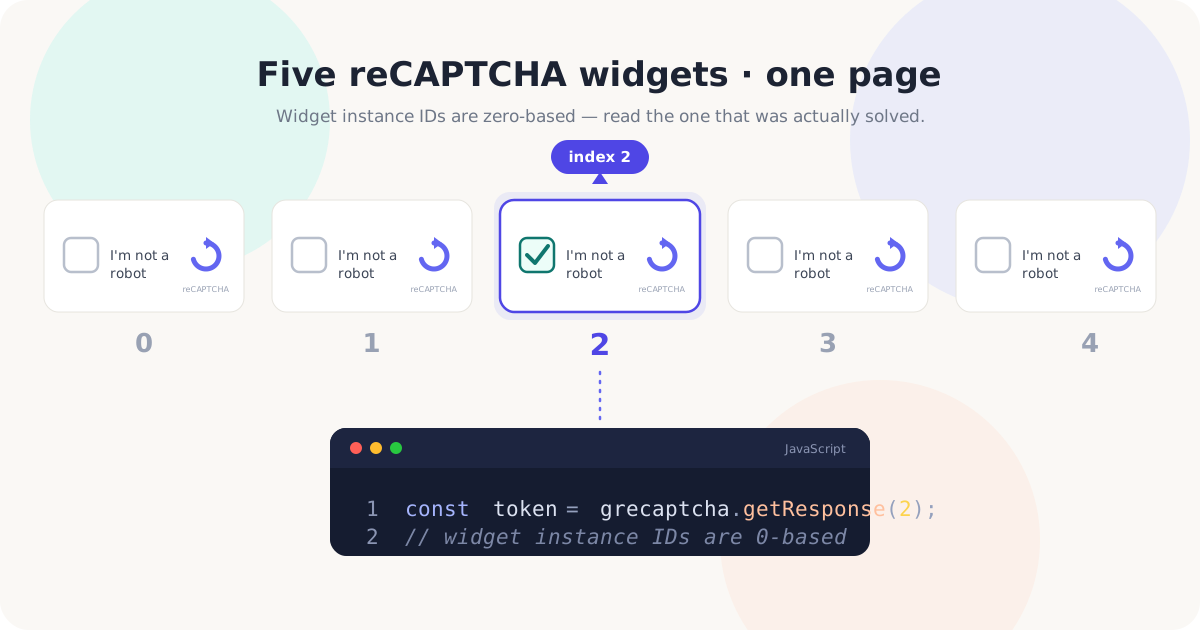
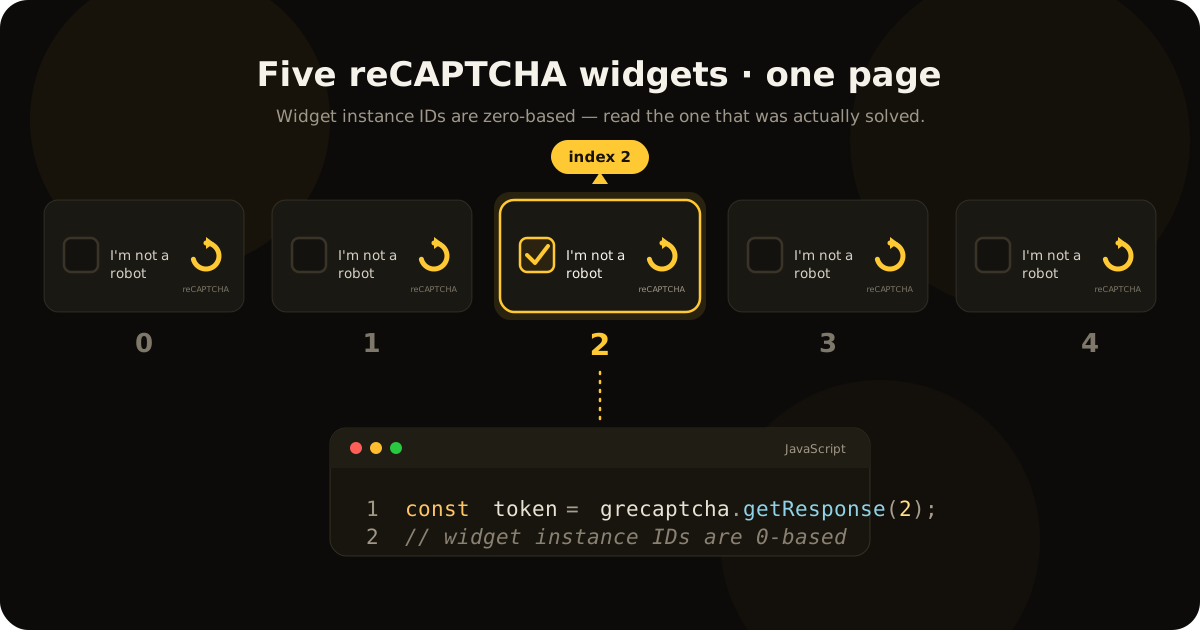
The problem
Most reCAPTCHA examples demonstrate a page with only one protected form. A single widget can often be checked with:
const token = grecaptcha.getResponse();That works because there is only one reCAPTCHA instance on the page. But consider a more realistic page containing several independent actions:
- A request-a-demo form
- A contact-support form
- A report-an-issue form
- A newsletter subscription form
- A comments form
Each action may require its own reCAPTCHA. When a user completes one of those widgets, the application must determine which widget was solved and retrieve the token from that specific instance. Calling grecaptcha.getResponse() with no argument is no longer sufficient — without a widget ID, the API generally reads the first widget created on the page. That creates a common bug:
- The user completes the second or third reCAPTCHA.
- The application reads the first reCAPTCHA.
- The returned value is empty.
- The application incorrectly tells the user to complete the CAPTCHA again.
The user solved a CAPTCHA, but the application checked the wrong one.
User story: a Help Center with multiple forms
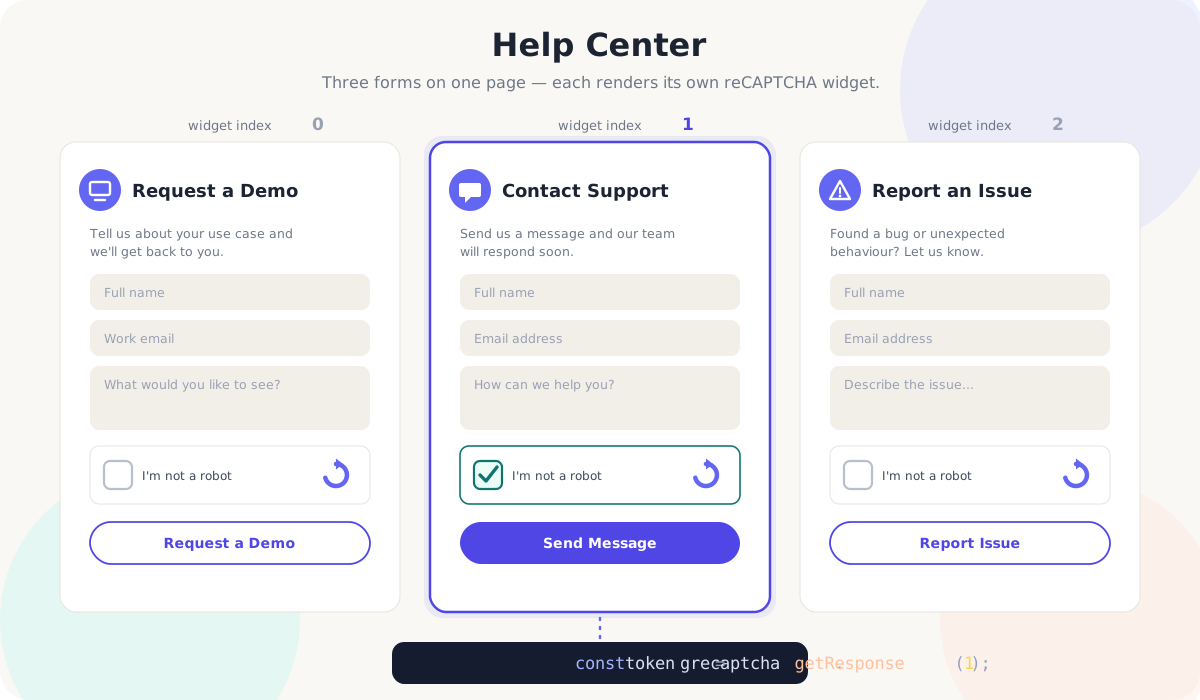
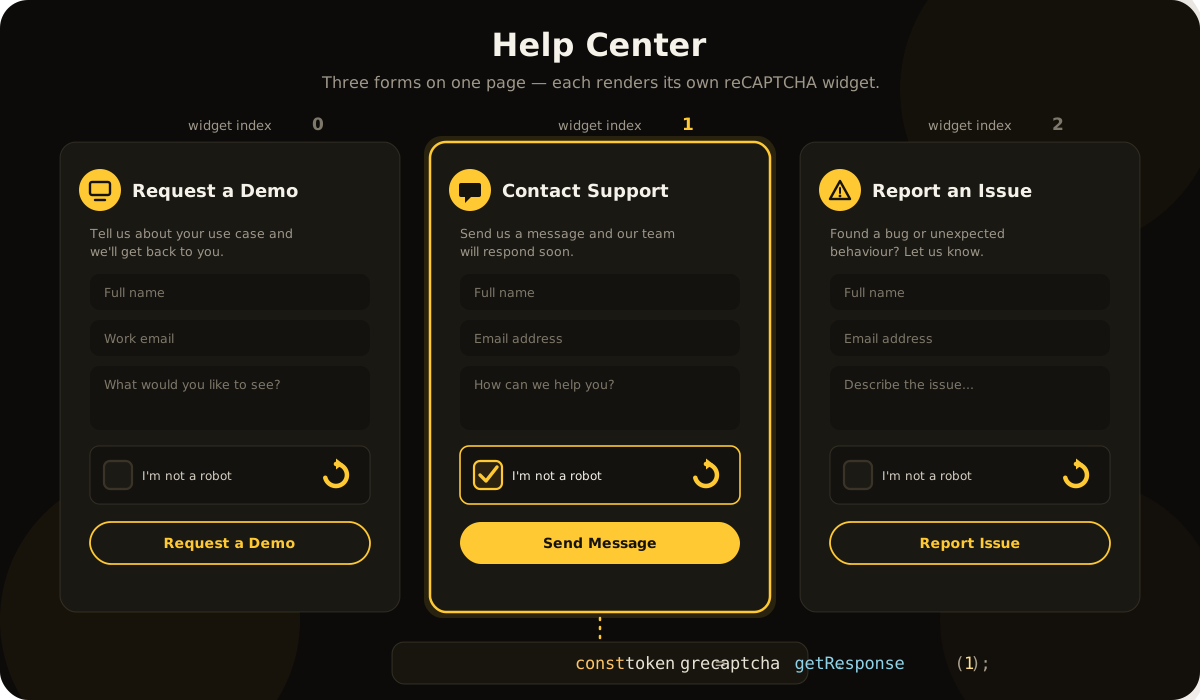
Imagine a software company with a Help Center containing three forms on the same page:
- Request a Demo — used by potential customers who want to learn more about the product.
- Contact Support — used by existing customers who need assistance.
- Report an Issue — used by anyone who finds a bug or unexpected behaviour.
Each form contains its own reCAPTCHA widget, so the page conceptually looks like this:
- Request a Demo → reCAPTCHA widget
0 - Contact Support → reCAPTCHA widget
1 - Report an Issue → reCAPTCHA widget
2
A user fills out the Contact Support form, completes the reCAPTCHA inside that form, and clicks Send Message. The application must retrieve the response from the Contact Support widget — not from Request a Demo or Report an Issue. If the Contact Support widget was assigned widget ID 1, the correct logic is:
const supportToken = grecaptcha.getResponse(1);Checking the first widget would produce the wrong result:
const wrongToken = grecaptcha.getResponse(0);Even though the user completed a CAPTCHA, wrongToken may be empty because widget 0 was never solved.
The root cause
The issue comes from treating every reCAPTCHA widget as though it were the same instance. Each rendered reCAPTCHA is a separate widget, and Google's JavaScript API retrieves a response using:
grecaptcha.getResponse(widgetId);The important value is widgetId. When widgets are rendered sequentially, their IDs commonly look like this:
- First rendered widget →
0 - Second rendered widget →
1 - Third rendered widget →
2 - Fourth rendered widget →
3 - Fifth rendered widget →
4
This is why the third widget is commonly retrieved with grecaptcha.getResponse(2) — JavaScript arrays use the same zero-based indexing: first item → index 0, second item → index 1, third item → index 2.
The number is a widget ID, not simply a visual position
The value passed into getResponse() should be the widget ID returned by grecaptcha.render(). In a simple implementation the returned IDs may be 0, 1, and 2, matching creation order — but production code should not rely on that assumption. Instead of hard-codinggrecaptcha.getResponse(2), store the returned widget ID:
const reportWidgetId = grecaptcha.render("report-captcha", {
  sitekey: "YOUR_SITE_KEY"
});

const token = grecaptcha.getResponse(reportWidgetId);
This makes the implementation reliable even if the page structure changes later.
The solution
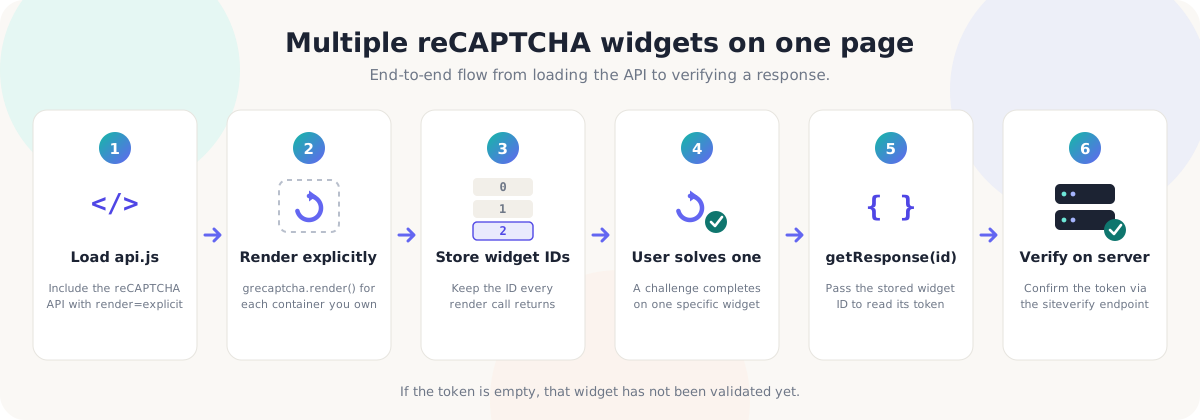
The reliable solution has five parts:
- Render every reCAPTCHA explicitly.
- Store the widget ID returned by each render call.
- Associate each widget ID with the correct form.
- Retrieve the response using the stored widget ID.
- Send the response token to the backend for verification.
The complete flow looks like this:
- Render the widget
- Store its returned widget ID
- Associate the ID with a form
- User completes that form's reCAPTCHA
- Read the response using the stored widget ID
- Send the token to the backend
- Verify the token before processing the form
1Create a container for each widget
Every reCAPTCHA widget needs its own HTML container:
<section class="help-center">
  <form id="demo-form" data-captcha-key="demo">
    <h2>Request a Demo</h2>

    <label>
      Full name
      <input type="text" name="name" required />
    </label>

    <label>
      Work email
      <input type="email" name="email" required />
    </label>

    <label>
      What would you like to see?
      <textarea name="message" required></textarea>
    </label>

    <div id="demo-captcha"></div>
    <button type="submit">Request a Demo</button>
  </form>

  <form id="support-form" data-captcha-key="support">
    <h2>Contact Support</h2>

    <label>
      Full name
      <input type="text" name="name" required />
    </label>

    <label>
      Email address
      <input type="email" name="email" required />
    </label>

    <label>
      How can we help?
      <textarea name="message" required></textarea>
    </label>

    <div id="support-captcha"></div>
    <button type="submit">Send Message</button>
  </form>

  <form id="issue-form" data-captcha-key="issue">
    <h2>Report an Issue</h2>

    <label>
      Full name
      <input type="text" name="name" required />
    </label>

    <label>
      Email address
      <input type="email" name="email" required />
    </label>

    <label>
      Describe the issue
      <textarea name="message" required></textarea>
    </label>

    <div id="issue-captcha"></div>
    <button type="submit">Report Issue</button>
  </form>
</section>
The container IDs are demo-captcha, support-captcha, andissue-captcha. These are HTML element IDs — they are not the reCAPTCHA widget IDs. The widget IDs are created and returned whengrecaptcha.render() is called.
2Load reCAPTCHA using explicit rendering
Explicit rendering gives the application full control over when and where each widget is created:
<script>
  function onRecaptchaLoad() {
    // Widgets will be rendered here.
  }
</script>

<script
  src="https://www.google.com/recaptcha/api.js?onload=onRecaptchaLoad&render=explicit"
  async
  defer>
</script>
The callback must exist before the reCAPTCHA script finishes loading. When the API is ready, onRecaptchaLoad() runs.
3Render and store every widget ID
A Map provides a clear way to associate a form with its reCAPTCHA widget:
const captchaWidgetIds = new Map();

function onRecaptchaLoad() {
  const demoWidgetId = grecaptcha.render("demo-captcha", {
    sitekey: "YOUR_SITE_KEY"
  });

  const supportWidgetId = grecaptcha.render("support-captcha", {
    sitekey: "YOUR_SITE_KEY"
  });

  const issueWidgetId = grecaptcha.render("issue-captcha", {
    sitekey: "YOUR_SITE_KEY"
  });

  captchaWidgetIds.set("demo", demoWidgetId);
  captchaWidgetIds.set("support", supportWidgetId);
  captchaWidgetIds.set("issue", issueWidgetId);
}
The resulting relationship is demo → demoWidgetId,support → supportWidgetId, issue → issueWidgetId. In a basic sequential render the returned values may look like:
demoWidgetId === 0;
supportWidgetId === 1;
issueWidgetId === 2;
But the application does not need to assume those numbers — it already stored the values returned by the API.
4Retrieve a response from the correct widget
Create a reusable function that finds the correct widget and retrieves its response:
function getCaptchaResponse(formKey) {
  const widgetId = captchaWidgetIds.get(formKey);

  if (widgetId === undefined) {
    throw new Error(
      `No reCAPTCHA widget is registered for the form "${formKey}".`
    );
  }

  return grecaptcha.getResponse(widgetId);
}
The form key determines which widget ID is used:
const supportToken = getCaptchaResponse("support");
const issueToken = getCaptchaResponse("issue");
Understanding the response value
getResponse(widgetId) returns a string. When the target reCAPTCHA has not been completed, the string is empty; when the user has completed the widget, it contains a token:
const token = grecaptcha.getResponse(widgetId);

if (token === "") {
  console.log("This reCAPTCHA has not been completed.");
}

if (token !== "") {
  console.log("A reCAPTCHA response token was found.");
}
A non-empty token confirms that the browser received a response. It does notcomplete the security check — the token must still be verified on the server.
5Connect each form to its own reCAPTCHA
Each form identifies its own widget through the data-captcha-key attribute:
const forms = document.querySelectorAll("form[data-captcha-key]");

forms.forEach((form) => {
  form.addEventListener("submit", handleFormSubmit);
});
The submit handler then retrieves the correct widget ID:
async function handleFormSubmit(event) {
  event.preventDefault();

  const form = event.currentTarget;
  const formKey = form.dataset.captchaKey;
  const widgetId = captchaWidgetIds.get(formKey);

  if (widgetId === undefined) {
    console.error(`No reCAPTCHA widget was found for "${formKey}".`);
    return;
  }

  const recaptchaToken = grecaptcha.getResponse(widgetId);

  if (!recaptchaToken) {
    displayCaptchaError(
      form,
      "Please complete the reCAPTCHA before submitting."
    );
    return;
  }

  await submitProtectedForm({
    form,
    formKey,
    widgetId,
    recaptchaToken
  });
}
The key line is grecaptcha.getResponse(widgetId). The handler reads the response only from the widget associated with the submitted form — it does not inspect the first widget by default, and it does not need to search every CAPTCHA on the page. It already knows which widget belongs to the form.
6Send the token to the backend
Create the payload using the submitted form's data:
async function submitProtectedForm({
  form,
  formKey,
  widgetId,
  recaptchaToken
}) {
  const fields = Object.fromEntries(new FormData(form));

  try {
    const response = await fetch("/api/help-center", {
      method: "POST",
      headers: {
        "Content-Type": "application/json"
      },
      body: JSON.stringify({
        formType: formKey,
        fields,
        recaptchaToken
      })
    });

    const result = await response.json();

    if (!response.ok) {
      throw new Error(
        result.message || "The form could not be submitted."
      );
    }

    displaySuccessMessage(form, "Your request was submitted successfully.");
    form.reset();
    grecaptcha.reset(widgetId);
  } catch (error) {
    displayFormError(form, error.message);
  }
}
The frontend sends:
{
  "formType": "support",
  "fields": {
    "name": "Example User",
    "email": "user@example.com",
    "message": "I need help with my account."
  },
  "recaptchaToken": "RECAPTCHA_RESPONSE_TOKEN"
}
The backend must verify recaptchaToken before processing the request.
7Verify the token on the server
A client-side token check is not a security boundary. A user could modify the frontend, bypass the form interface, or send a request directly to the endpoint. The backend must verify the token before sending an email, opening a support ticket, saving a record, creating an account, processing a comment, or performing any protected operation. The following example uses Node.js and Express:
import express from "express";

const app = express();
app.use(express.json());

app.post("/api/help-center", async (req, res) => {
  const {formType, fields, recaptchaToken} = req.body;

  if (!recaptchaToken) {
    return res.status(400).json({
      message: "A reCAPTCHA token is required."
    });
  }

  try {
    const verificationBody = new URLSearchParams({
      secret: process.env.RECAPTCHA_SECRET_KEY,
      response: recaptchaToken
    });

    const verificationResponse = await fetch(
      "https://www.google.com/recaptcha/api/siteverify",
      {
        method: "POST",
        headers: {
          "Content-Type": "application/x-www-form-urlencoded"
        },
        body: verificationBody
      }
    );

    const verificationResult = await verificationResponse.json();

    if (!verificationResult.success) {
      return res.status(400).json({
        message: "reCAPTCHA verification failed.",
        errors: verificationResult["error-codes"] || []
      });
    }

    /*
     * Continue processing the request:
     *
     * 1. Validate and sanitize fields
     * 2. Store the submission
     * 3. Send an email or create a ticket
     * 4. Return a successful response
     */

    return res.json({
      success: true,
      formType,
      message: "The request was verified and submitted."
    });
  } catch (error) {
    console.error(error);
    return res.status(500).json({
      message: "The request could not be verified."
    });
  }
});The simplified version
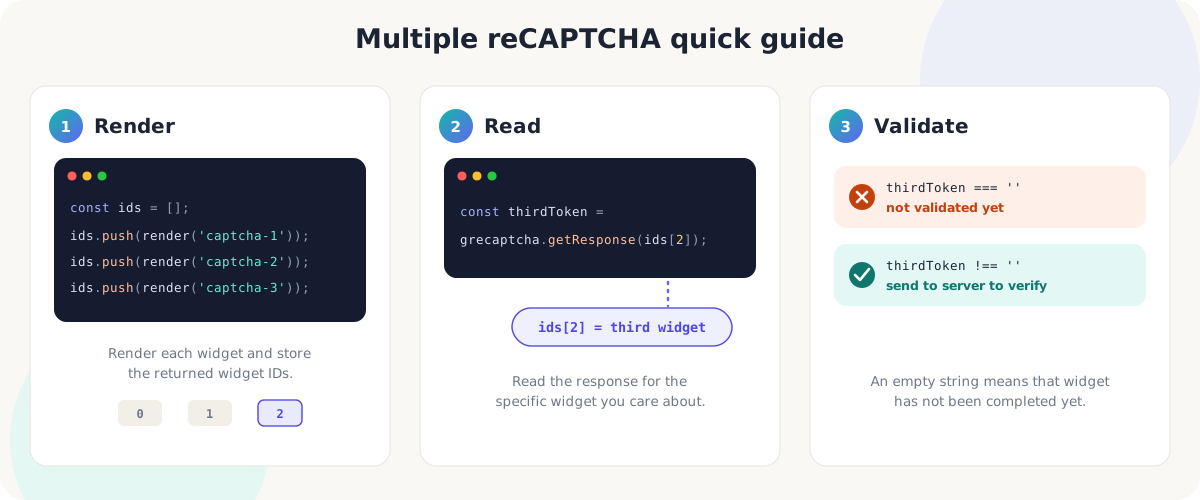
The entire concept can be reduced to three stages.
Render
const widgetIds = [];

widgetIds.push(
  grecaptcha.render("captcha-1", {sitekey: "YOUR_SITE_KEY"})
);

widgetIds.push(
  grecaptcha.render("captcha-2", {sitekey: "YOUR_SITE_KEY"})
);

widgetIds.push(
  grecaptcha.render("captcha-3", {sitekey: "YOUR_SITE_KEY"})
);
Read
The third widget is stored at array index 2:
const thirdWidgetId = widgetIds[2];
const thirdToken = grecaptcha.getResponse(thirdWidgetId);
Validate the client-side state
if (thirdToken === "") {
  console.log("The third widget has not been completed.");
} else {
  console.log("Send the token to the server for verification.");
}
Why storing widget IDs is better than hard-coding indexes
grecaptcha.getResponse(2) may work initially, but it depends on widget ID 2 always representing the widget you expect. That assumption can break when:
- A new form is added above the existing forms
- One widget is removed
- Widgets are conditionally rendered
- A modal creates a widget before the main page
- A component mounts in a different order
- The same component is reused several times
- A single-page application recreates part of the interface
A stored reference does not depend on visual order:
const widgetIds = {
  demo: grecaptcha.render("demo-captcha", demoOptions),
  support: grecaptcha.render("support-captcha", supportOptions),
  issue: grecaptcha.render("issue-captcha", issueOptions)
};

const supportToken = grecaptcha.getResponse(widgetIds.support);
Reading widgetIds.support is easier to understand thangetResponse(1) — and it stays understandable when another developer revisits the code months later.
Alternative approach: a callback for each widget
Instead of waiting until form submission to retrieve the response, each widget can deliver its token through a callback:
const captchaTokens = new Map();

function onRecaptchaLoad() {
  const supportWidgetId = grecaptcha.render("support-captcha", {
    sitekey: "YOUR_SITE_KEY",
    callback(token) {
      captchaTokens.set("support", token);
    },
    "expired-callback"() {
      captchaTokens.delete("support");
    },
    "error-callback"() {
      captchaTokens.delete("support");
    }
  });

  captchaWidgetIds.set("support", supportWidgetId);
}

// The form can then read the stored token:
const token = captchaTokens.get("support");
This approach is useful when the interface needs to react immediately after the CAPTCHA is solved — enabling the submit button, removing a validation message, displaying a success state, or recording that the step is complete. Even with callbacks, the token must still be verified by the backend.
Resetting the correct widget
After a successful submission, reset only the widget belonging to that form:
// Reset only the widget belonging to the submitted form:
grecaptcha.reset(widgetId);

// Avoid resetting without an ID when several widgets exist —
// this may reset the first widget instead:
grecaptcha.reset();
The same principle applies to both methods — getResponse(widgetId) andreset(widgetId). Always pass the widget you intend to affect.
Common mistakes
1. Calling getResponse() without an ID
// May read the first widget, not the one you expect:
const token = grecaptcha.getResponse();

// Reads the widget you intend:
const token = grecaptcha.getResponse(widgetId);
2. Assuming the most recently completed widget is returned
getResponse() does not search for the last widget the user completed. The application must identify the correct instance.
3. Confusing the HTML ID with the widget ID
// This is an HTML element id — do NOT pass it to getResponse():
// "support-captcha"

const supportWidgetId = grecaptcha.render("support-captcha", options);

// Pass the returned widget ID instead:
grecaptcha.getResponse(supportWidgetId);
4. Using a fixed index without storing the return value
// Fragile — depends on render order never changing:
grecaptcha.getResponse(2);

// More reliable — reads the stored value:
const thirdWidgetId = widgetIds[2];
grecaptcha.getResponse(thirdWidgetId);

// Most descriptive — reads by meaning, not position:
grecaptcha.getResponse(widgetIds.support);
5. Trusting the client-side result
A non-empty token does not replace backend validation. The frontend only collects the response; the backend decides whether it is accepted.
6. Resetting the wrong widget
grecaptcha.reset() without an ID may affect the first widget. Pass the correct ID: grecaptcha.reset(widgetId).
7. Rendering the same container twice
A reCAPTCHA container should not be rendered repeatedly without proper lifecycle handling. In component-based applications, make sure rendering occurs only once for each mounted container.
Best practices
Use explicit rendering
It gives the application control over each widget and direct access to its returned ID.
Store every returned widget ID
In a Map, object, array, or component state — whatever fits the application.
Use meaningful keys
Prefer captchaWidgetIds.get("support") over unexplained numbers scattered through the code.
Associate widgets with forms
Each form should have a direct, predictable connection to its reCAPTCHA widget.
Validate on both client and server
Client-side validation improves user experience; server-side verification provides security.
Reset only the relevant widget
After submission, reset the specific widget connected to the form.
Handle expiration and errors
Provide callbacks for expired responses and network errors so the user understands what happened.
Keep secret keys on the backend
Only the public site key belongs in frontend code.
Complete client-side example
<script>
  const captchaWidgetIds = new Map();

  function onRecaptchaLoad() {
    captchaWidgetIds.set("demo", grecaptcha.render("demo-captcha", {
      sitekey: "YOUR_SITE_KEY"
    }));

    captchaWidgetIds.set("support", grecaptcha.render("support-captcha", {
      sitekey: "YOUR_SITE_KEY"
    }));

    captchaWidgetIds.set("issue", grecaptcha.render("issue-captcha", {
      sitekey: "YOUR_SITE_KEY"
    }));

    initializeForms();
  }

  function initializeForms() {
    const forms = document.querySelectorAll("form[data-captcha-key]");

    forms.forEach((form) => {
      form.addEventListener("submit", handleFormSubmit);
    });
  }

  async function handleFormSubmit(event) {
    event.preventDefault();

    const form = event.currentTarget;
    const formKey = form.dataset.captchaKey;
    const widgetId = captchaWidgetIds.get(formKey);

    if (widgetId === undefined) {
      displayMessage(
        form,
        "The security verification could not be loaded.",
        "error"
      );
      return;
    }

    const token = grecaptcha.getResponse(widgetId);

    if (!token) {
      displayMessage(
        form,
        "Please complete the reCAPTCHA before submitting.",
        "error"
      );
      return;
    }

    const fields = Object.fromEntries(new FormData(form));

    try {
      const response = await fetch("/api/help-center", {
        method: "POST",
        headers: {
          "Content-Type": "application/json"
        },
        body: JSON.stringify({
          formType: formKey,
          fields,
          recaptchaToken: token
        })
      });

      const result = await response.json();

      if (!response.ok) {
        throw new Error(
          result.message || "The form could not be submitted."
        );
      }

      displayMessage(
        form,
        result.message || "Your request was submitted successfully.",
        "success"
      );
      form.reset();
      grecaptcha.reset(widgetId);
    } catch (error) {
      displayMessage(form, error.message, "error");
      grecaptcha.reset(widgetId);
    }
  }

  function displayMessage(form, message, type) {
    let messageElement = form.querySelector("[data-form-message]");

    if (!messageElement) {
      messageElement = document.createElement("p");
      messageElement.setAttribute("data-form-message", "");
      messageElement.setAttribute("role", "status");
      form.appendChild(messageElement);
    }

    messageElement.textContent = message;
    messageElement.dataset.type = type;
  }
</script>

<script
  src="https://www.google.com/recaptcha/api.js?onload=onRecaptchaLoad&render=explicit"
  async
  defer>
</script>
Final takeaway
When multiple reCAPTCHA widgets exist on one page, the application cannot treat them as a single shared CAPTCHA — each widget is its own instance. The reliable process is:
- Create a unique container
- Render the widget explicitly
- Store the returned widget ID
- Associate the ID with its form
- Retrieve the correct response
- Verify the response on the server
The third item in a JavaScript array is accessed with index 2, and that stored widget ID retrieves the response:
const thirdWidgetId = widgetIds[2];
const token = grecaptcha.getResponse(thirdWidgetId);
In a simple sequential implementation the third widget's returned ID may also be 2 — but the lesson is not to rely on the visual position alone. Store the widget ID returned by grecaptcha.render(), connect it to the correct form, and pass that stored ID into grecaptcha.getResponse(). That small change prevents the application from checking the wrong CAPTCHA and keeps the implementation reliable as the page grows. The challenge is never the number of widgets — it is maintaining a clear relationship between the form being submitted, the widget connected to that form, the token that widget generated, and the backend operation protected by that token.
Building a Page with Multiple Protected Forms?
Use explicit rendering, store every returned widget ID, and validate only the widget associated with the current action. This produces clearer code, a better user experience, and a more secure submission flow.